

First Start
This guide walks you through the entire first launch process for your Hytale server on HypeServ: From ordering the server to authenticating it and joining in-game for the first time.
If you already own a HypeServ server, this page will show you how to get your server ready to join.
Order your Hytale server
If you haven’t ordered your server yet, start here:
👉 Order a serverChoose Hytale as the game, then pick a plan based on your expected player count.
You can upgrade later if you need more performance.
Open the HypeServ panel
After ordering, you'll automatically be redirected to your server dashboard.
Inside the panel you’ll see:
- Your Hytale server
- Server status (offline / starting / running)
- Buttons to Start, Stop or Restart your server
- Tabs for Console, Files, Backups, Ports, and more
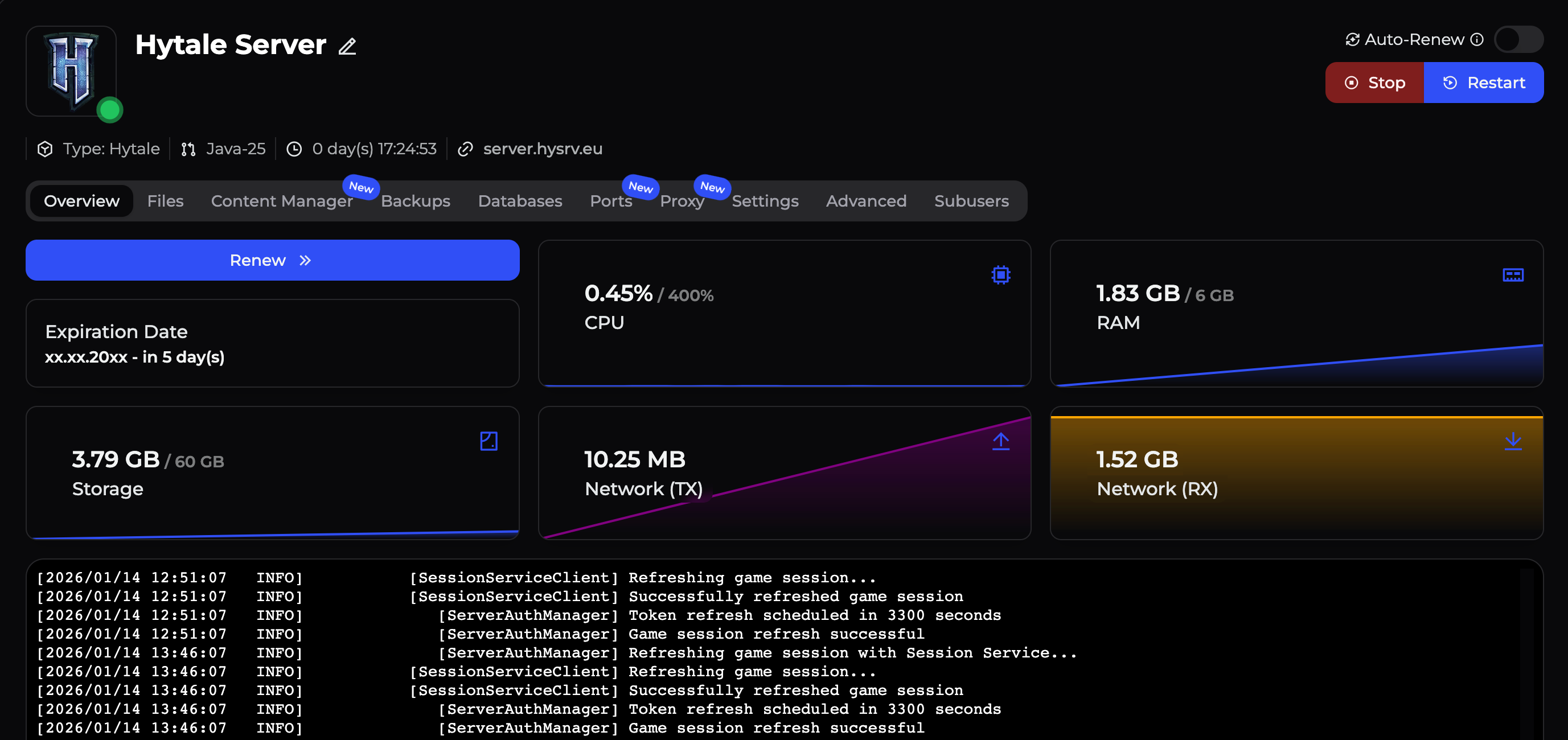
This is where you control your entire server.
Start the server
Click Start to start your server.
The first start may take a little longer than usual because:
- Hytale server files are being prepared
- Assets are downloaded
- The world is generated
Open the Console tab to watch the startup process in real time.
When you see that the server is running and no more errors appear, it is ready for the next step.
Check the Troubleshooting page in this wiki or contact HypeServ support, we will help immediately.
Authenticate your server (OAuth / Device Login)
[AbstractCommand] ===================================================================
[AbstractCommand] DEVICE AUTHORIZATION
[AbstractCommand] ===================================================================
[AbstractCommand] Visit: https://oauth.accounts.hytale.com/oauth2/device/verify
[AbstractCommand] Enter code: <XXXXXXX>
[AbstractCommand] Or visit: https://oauth.accounts.hytale.com/oauth2/device/verify?user_code=<XXXXXX>
[AbstractCommand] ===================================================================
Hytale servers must be authenticated before players can join.
- Open the Console tab in the HypeServ panel.
- Enter the following command:
/auth login device
- Open the URL in your browser and enter the code. (Or open the second link with the code included.)
- When the website confirms success, your server is now authenticated and can accept players.
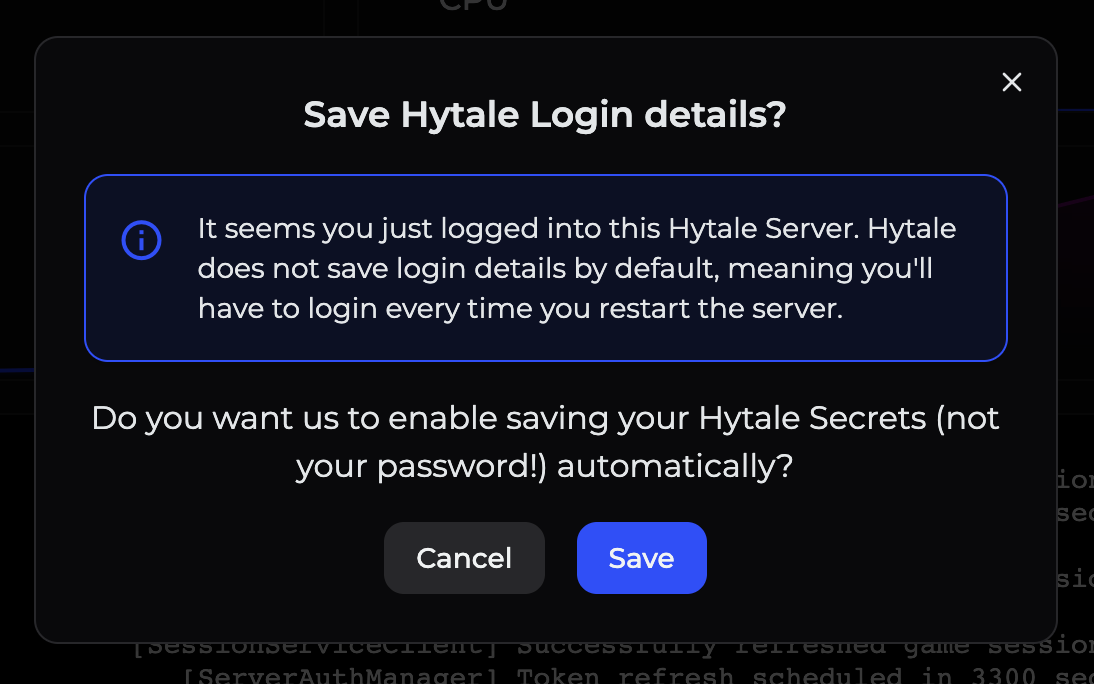
Find your server address
To join your server, you need its address.
In the HypeServ panel you will see your servers IP and Port above the console. If you have set your free subdomain, you will see that instead of the IP.
Join the server in Hytale
Open Hytale, go to Multiplayer, and add a new server.
Enter your subdomain (or IP:port) as the address and click connect
If everything is correct, you will spawn into your own Hytale world.
What happens next?
Your server is now live 🎉.
From here you can:
- Change server settings
- Set a password or whitelist
- Install mods and content packs
- Use your MySQL database
- Assign custom ports
- Upload custom worlds