

Additional Ports
This guide explains how to allocate additional network ports to your server.
While every server comes with a primary Game Port automatically assigned, you may need extra ports to run specific secondary services, mods, or tools alongside your game.
Open the Ports menu
Log into the HypeServ panel and open your server dashboard.
In the navigation bar, click on the Ports tab.
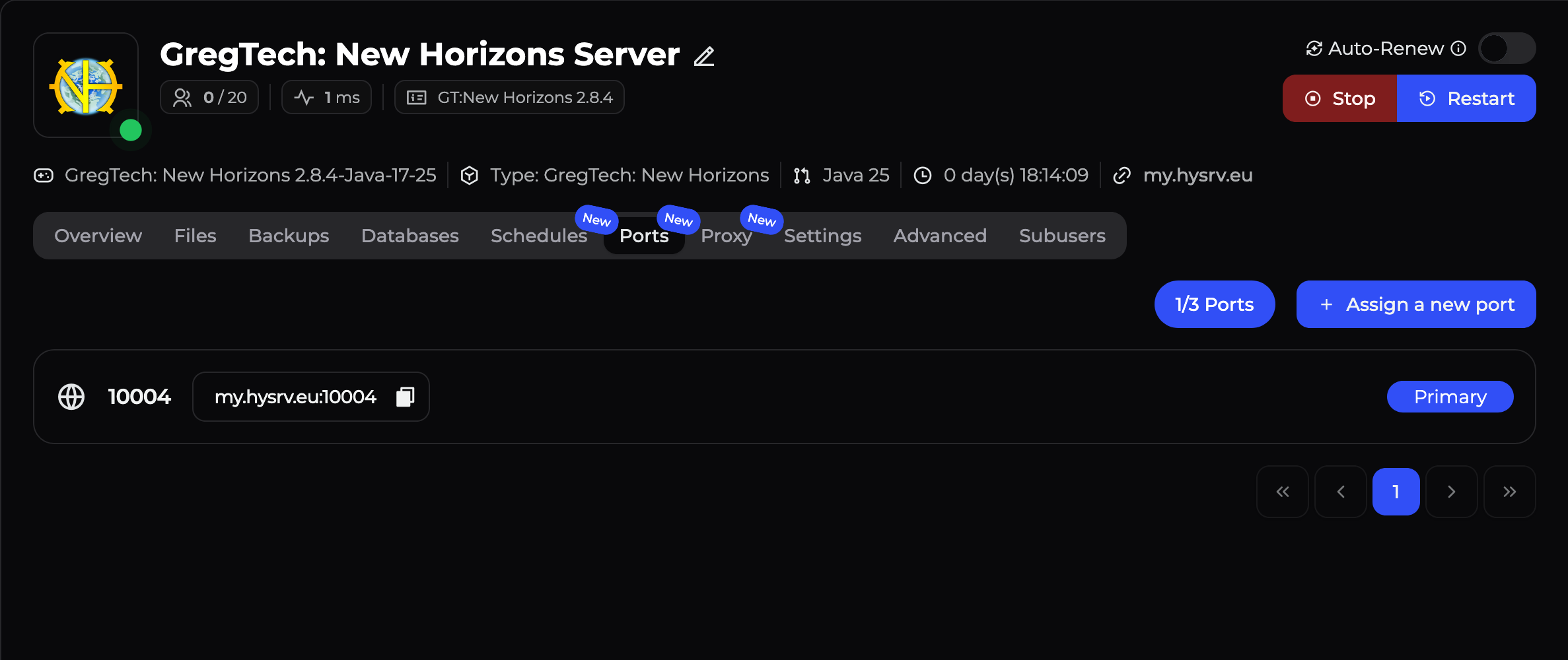
This page displays all ports currently assigned to your server. Your primary game port will be marked as Primary.
Allocate a new Port
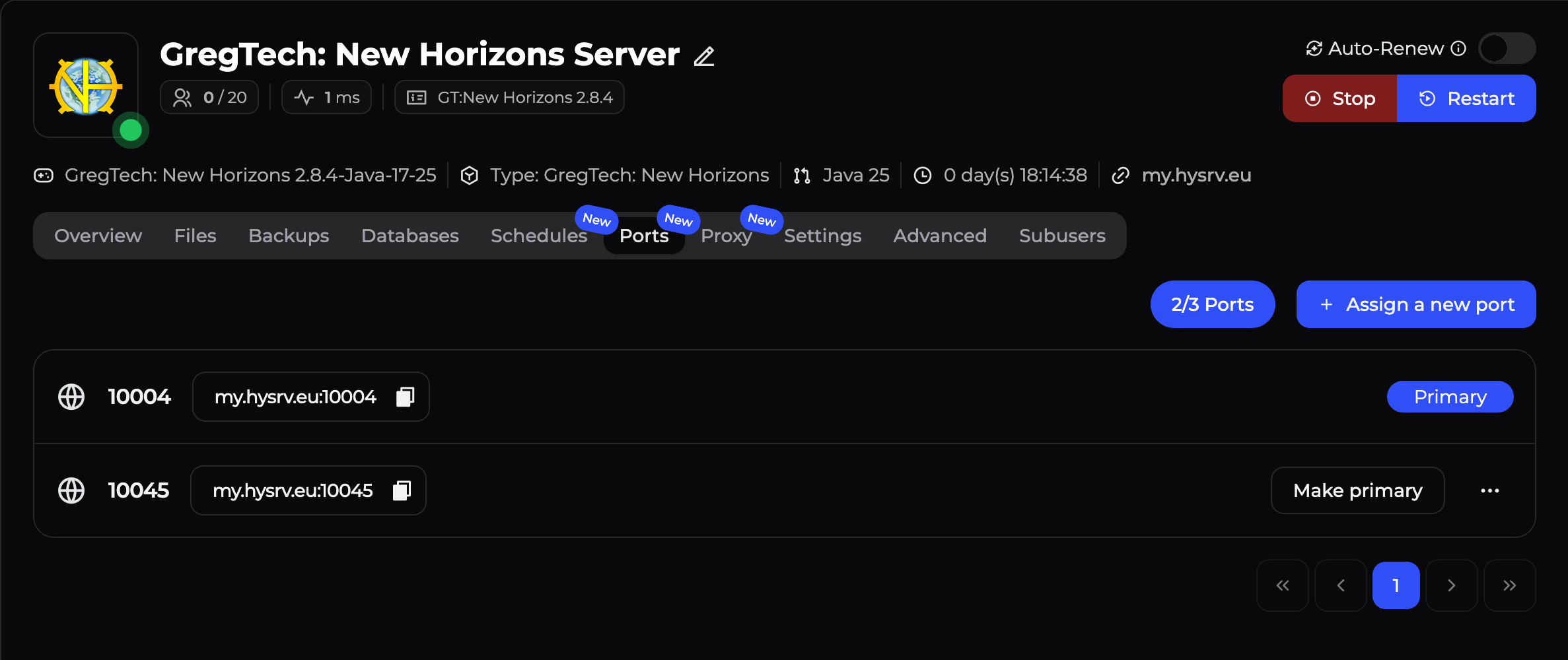
To generate a new port for your server to use:
- Click the
Assign a new portbutton in the top right corner. - The panel will automatically assign a random, available port number to your server.
Restart your Server
For any configuration changes to take effect, you must restart your server.
Go back to the Console tab and click Restart. Once the server boots up, (and if you've configured whatever's supposed to use the port correctly) your secondary service will be actively listening on the new port!
Common Use Cases for Extra Ports
Need to know what requires additional ports? Here are the most common examples:
- Web Maps: Tools like Dynmap, BlueMap, or squaremap require an extra port to host their live web map.
- Voice Chat: Voice mods often need a dedicated UDP port for in-game audio routing.
- Crossplay: Services like GeyserMC require a secondary port to listen for incoming Bedrock connections.
- RCON / Query: Remote console tools and server listing websites often require a dedicated query port.